“Bone Heat Weighting: failed to find solution for one or more bones” appears when Blender cannot finish the Automatic Weights calculation. It is not proof that the whole rig is bad, and it is not a request to smooth the mesh. There may be no new weights to smooth.
The fastest useful response is isolation: save a copy, test one mesh object at a time, and identify the smallest part of the character that makes the warning return. On creature rigs, the blocker is often not the torso. It may be a separate tooth, eye, claw, feather, armor plate, or dense accessory included in the same parenting operation.
What the warning actually means
Blender's Armature Deform parenting documentation says Automatic Weights creates groups for deforming bones, then assigns influence with a distance-based “bone heat” calculation. The same page warns that complex armatures and child objects can produce overlapping or unexpected influence decisions.
That gives the error a narrow interpretation: one or more requested solves did not complete. The message does not identify the failed bone, prove that non-manifold geometry is the cause, or tell you to rebuild the armature. Treat each of those as a hypothesis to test.
Do not make a whole-character edit in response to a message that does not name the failing part.
Triage it by what Blender leaves behind
A five-test sequence that preserves your work
-
Protect any weights that already work
Save a new
.blendversion or duplicate the skinned objects before parenting again. Automatic Weights can completely replace existing same-named vertex-group contents. A rebind is not a harmless diagnostic button.If only one paw, wing, or tail section is unweighted, do not sacrifice a working spine and face just to rerun the calculation. Keep a known-good copy available for comparison or weight transfer.
-
Find the failing child object
On the copy, parent the main body mesh alone. If it succeeds, add the other mesh objects one at a time until the warning returns. For a single object made of many disconnected islands, duplicate it and temporarily separate logical parts so you can perform the same test.
This is diagnosis, not a demand to join everything. An eyeball, tooth, horn, or armor plate may be intentionally separate. Once identified, choose how that part should move: deform with several bones, follow one bone rigidly, or receive weights from a nearby surface.
-
Inspect topology without blindly “cleaning” the design
In Edit Mode, Blender's Select → Select All by Trait → Non-Manifold finds boundaries, wires, multi-face edges, and other non-manifold conditions. The selection is evidence to inspect, not an automatic delete list. Open borders can be intentional.
If you find unintended doubled vertices or zero-area geometry, repair only that region on the copy. Blender's Clean Up reference documents Merge by Distance and Degenerate Dissolve. Start with a very small threshold and verify the silhouette, UVs, shape keys, and vertex count afterward.
-
Check which bones are eligible to receive weights
Automatic Weights is built around deforming bones. Blender's Bone Deform documentation states that disabling Deform both mutes that bone's geometry influence and excludes it from the automatic-weight calculation.
That does not mean every control bone should be changed to Deform. Rigify and other generated rigs deliberately separate controls from
DEFbones. Confirm that you are parenting to the intended generated rig and that the bones meant to bend the mesh are the deform chain. -
Test transforms and scale on the duplicate
Check that the mesh and armature use the intended object transforms and occupy the same practical scale. If either object has extreme or non-uniform scale, make a duplicate, apply transforms consistently to both sides of the bind, and rerun the isolated test. Do not apply transforms to the only production file just to see whether the warning changes.
Also inspect bone placement with the armature shown In Front. A creature's tiny toes, tightly packed wing bones, or remote tail controls can create a very different calculation from the clean torso you see first.
Choose the recovery path by how much is already good
No usable weights exist
Once the blocking object is identified, retry Automatic Weights on only the geometry that should actually deform. For rigid accessories, direct bone parenting may match the intended motion better than heat weights. If the automatic solve still cannot start, With Empty Groups creates the bone-named groups without pretending to fill them; you can then assign a controlled starting region manually.
Most of the rig already bends correctly
Preserve it. Transfer from the known-good copy, repair the failed child object separately, or edit the smallest unweighted region. A whole-character rebind trades one visible problem for an unknown number of new ones.
The warning is gone, but the pose is wrong
You have moved from bind failure to weight diagnosis. Inspect one visibly wrong vertex and list every nonzero group. If a distant bone owns it, use the wrong-bone influence workflow. If the groups are plausible but the joint transition is harsh, smooth only a selected transition band and test the complete motion range.
Why this narrow workflow matters
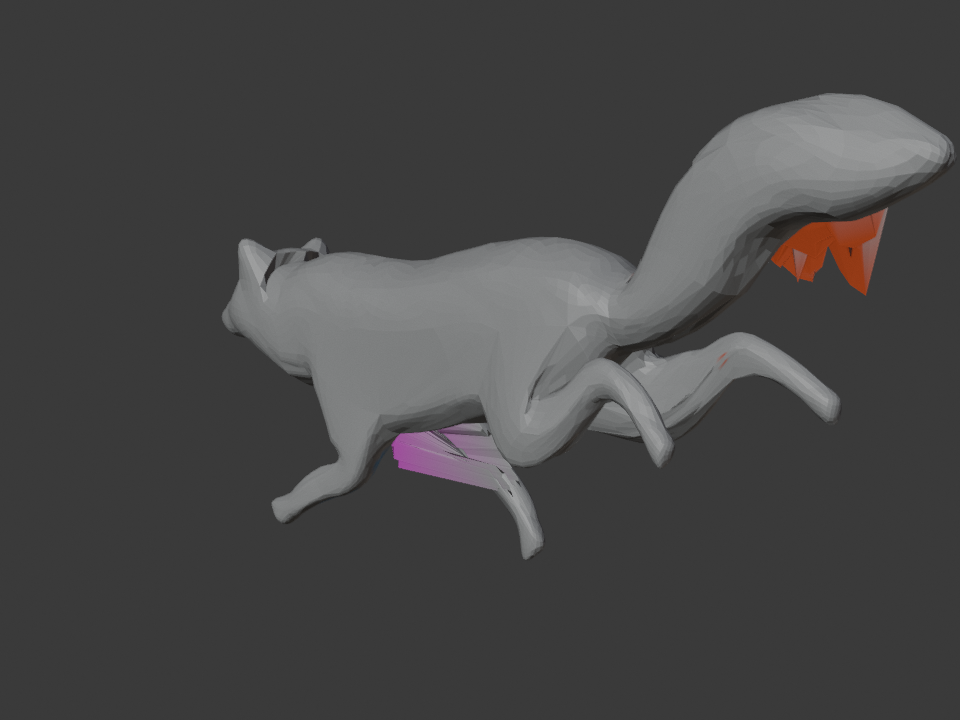
Recent public help cases show three different outcomes hidden behind the phrase “Automatic Weights failed.” A July 2026 GameDev.tv raccoon case remained wrong after normalization, limiting, repainting, and rebuilding the armature. An April 2026 BlenderHelp tail-rig question asked whether a failed automatic bind meant painting every bone from scratch. An August 2026 Blender Artists case produced empty groups until dense teeth, gums, eyes, and eyelashes were separated from the body diagnosis.
Those are not one bug. They are exactly why the first job is to identify the smallest failing object and whether the solve produced any usable weights. Only then does a repair tool have a defined target.
Blender references
- Armature Deform Parent: how Automatic Weights uses bone heat, which groups it creates, and what a rebind overwrites.
- Bone Deform: how the Deform switch affects geometry and Automatic Weights eligibility.
- Select All by Trait: what Blender includes in Non-Manifold and Loose Geometry selections.
- Mesh Clean Up: the exact behavior of Merge by Distance and Degenerate Dissolve.